
Promotion and Tenure
Faculty Promotion, Tenure and Emeritus Information and Procedures
Faculty holding full-time positions at TCU seek promotion, tenure and emeritus status (PTE) via procedures and timelines established in the Promotion, Tenure and Emeritus Policy. The policy contains details on portfolio requirements, submissions and access; and requirements for possible extensions and accelerations of the tenure probationary period.
Access the Promotion, Tenure and Emeritus Policy
See the Promotion, Tenure and Emeritus Policy for requirements and additional information on tenure probation extension requests. The form is to be completed by the requesting faculty member. Upon completion of the form please submit to your Chair and Dean for review. If approved by the Dean, the Dean will forward your request to the Provost’s Office for review. A decision will be communicated via a formal letter from the Provost’s Office.
Related Information from the Faculty Handbook:
TCU utilizes Watermark for all steps of the PTE cycle. Promotion, tenure and emeritus (PTE) candidates, committees, unit admins, department chairs, deans, and provost office will add materials, review them, and make recommendations in Watermark.
Log in to WatermarkWatermark available Monday, August 24, 2026 for the 2026-27 PTE Cycle.
Register for Watermark Office Hours
Promotion and Tenure Process
The promotion, tenure and emeritus Watermark workflow was built using TCU’s AA1.003 Faculty Promotion, Tenure and Emeritus Policy. An overview of the steps follows.
LEGEND: WHO CAN SEE EACH STEP
- Not visible to candidates
- The materials or status for this step can be seen by the candidate.
- Limited to those directly engaged in the step
- Only the people actively completing that step (for example, a committee or reviewer) can see it.
- No badge
- Items are visible to the candidate, reviewers, leadership, and designees once the step is completed.
Note: All steps will auto advance on the due date. Materials and work saved on the specified Watermark screen will be advanced. All steps can be advanced earlier, making the next step available earlier.
| Step | Responsible Party & Description | Available Date | Due Date |
|---|---|---|---|
| CANDIDATE PORTFOLIO | |||
| Step 1 | Candidate | Monday, August 24, 2026 | Monday, September 14, 2026 |
| PREPARATION FOR REVIEW | |||
| Step 2a | Department Chair: affirm or correct review (track, tenure, promotion, emeritus); add previous review letters (tenure progress or post-tenure review) | Tuesday, September 15, 2026 | Friday, September 18, 2026 |
| Step 2b | Department Chair: add external letters Not visible to candidate Not visible to candidate |
Immediately after submission of previous step† | Friday, September 18, 2026 |
| DEPARTMENTAL REVIEW | |||
| Step 3a | Department Committee Not visible to candidate |
Saturday, September 19, 2026 | Monday, October 26, 2026 |
| Step 3b | Department Chair | Tuesday, October 27, 2026 | Monday, November 9, 2026 |
| Step 3c | Candidate: review Department Chair letter (optional letter) | Tuesday, November 10, 2026 | Monday, November 16, 2026 |
| COLLEGE REVIEW | |||
| Step 4a | College Committee Not visible to candidate |
Tuesday, November 17, 2026 | Thursday, January 7, 2027 |
| Step 4b | Dean | Friday, January 8, 2027 | Friday, January 15, 2027 |
| Step 4c | Candidate: review Dean letter (optional letter) | Saturday, January 16, 2027 | Friday, January 22, 2027 |
| OFFICE PREPARATION FOR UNIVERSITY REVIEW | |||
| Step 5a | Faculty Affairs office🔒 Limited to those directly engaged | Saturday, January 23, 2027 | Monday, January 25, 2027 |
| Step 5b | Academic Affairs office🔒 Limited to those directly engaged | Tuesday, January 26, 2027 | Wednesday, January 27, 2027 |
| Step 5c | Provost🔒 Limited to those directly engaged | Thursday, January 28, 2027 | Thursday, January 28, 2027 |
| UNIVERSITY REVIEW | |||
| Step 6a | University Committee Not visible to candidate |
Friday, January 29, 2027 | Monday, February 8, 2027 |
| Step 6b | Provost | Tuesday, February 9, 2027 | Friday, February 12, 2027 |
| Step 6c | Candidate: review Provost letter; optional Faculty Review Hearing Committee request | Saturday, February 13, 2027 | Friday, February 19, 2027 |
| FACULTY REVIEW HEARING COMMITTEE | |||
| Step 7 | FRHC process🔒 Limited to those directly engaged | Saturday, February 20, 2027 | Friday, March 12, 2027 |
| Candidate: review Provost’s post-FRHC decision | Monday, March 22, 2027 | — | |
| BOARD OF TRUSTEES | |||
| Step 8 | Completion outside of Watermark🔒 Limited to those directly engaged | — | — |
| PROVOST & CHANCELLOR | |||
| Step 9 | Completion outside of Watermark🔒 Limited to those directly engaged | — | — |
| Official decision letters sent outside of Watermark | — | — | |
You can access tasks from the link in the invitation email or by navigating to your inbox within Watermark.
Email Notification
Everyone with a task to complete in Watermark will receive a TCU account email from TCU Faculty Affairs (Watermark) notifications@watermarkinsights.com when the task is available. Check junk mail if you do not receive it when expected. You may also contact watermark@tcu.edu. This email will provide a brief overview of the task, the due date, a link to this webpage, and a link to TCU’s PTE policy. The link to the particular Watermark task is a blue bar with white lettering (Mac and online) or a blue bar with blue lettering (PC). A full URL to copy and paste into your browser will close the email.


Inbox & History
Faculty as well as department and college administrators have access to their Inbox and History. They allow you to view pending tasks, track your review history, and access your Watermark inbox. The Inbox contains hyperlinks to tasks to complete. History documents portfolio progression and contains hyperlinks to the documents stakeholders are allowed to see according to AA1.003 Faculty Promotion, Tenure and Emeritus Policy.
Faculty Users
The Watermark Faculty Success main page is always available to faculty. There, faculty can access active tasks from Home or Reviews on the left vertical menu bar. You may have to click the three-horizontal-line (hamburger) icon to reveal the navigation bar.
- Home: Pending tasks appear in the Tasks & To-Dos list.
- Reviews: Pending tasks appear in your inbox. You can also view your history of completed reviews and submissions.


Department and College Administrator Users
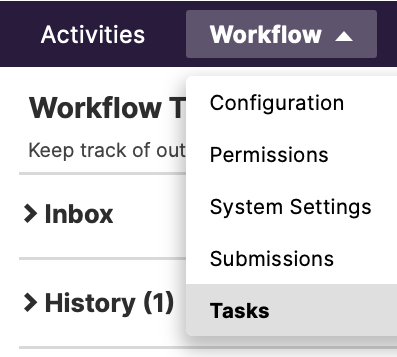
Users with administrative roles (such as department chairs, deans, designees, and other reviewers) access tasks by clicking Workflow from the horizontal navigation bar at the top of the screen and then selecting Tasks.
Task Availability
Once you have access, a task remains available until one of the following occurs:
- The step is completed and submitted to the next step in the process.
- The step automatically advances to the next step. Any saved work will advance to the next step, as will any incomplete items.
- The submission is recalled or administratively sent back to a previous step.
Instructions
Each task in Watermark will begin with instructions about the task as defined by TCU policy, along with links to relevant resources. Specific actions include:
- Making selections from provided options.
- Uploading documents prepared outside of Watermark.
- Reviewing materials added to Watermark.
- Brief typing.
- Clicking the Action button to save a draft and move materials to the next step.
Adding Files to Watermark
Whether you are a candidate, reviewer, or unit administrator, you will add files to the portfolio.
File Size and Quantity
- In some fields, you will add one (1) file only.
- In other fields, you may upload as many documents as needed.
- Any individual file upload is limited to 1 GB (1,000 MB).
Accepted File Types
Watermark accepts the following file types:
- Documents: csv, doc/docx, odt, rtf, txt, html, pdf
- Spreadsheets: xls/xlsx, ods
- Presentations: ppt/pptx, odp
- Images: jpg/jpeg, png, gif, tif/tiff, bmp
- Video: mov, mp4, wmv, avi, mpg, mpeg
- Audio: mp3, wav, wma
- Zipped files and folders: Learn how to zip and unzip files (Microsoft support).
Note: Reviewers will open files on their computers. Please use common file types that reviewers at the department, college, and university levels will be able to open.
Naming Files
Ensure file names are descriptive. Best practice is to begin each file name with the candidate’s last name. Number, order, and name files to guide reviewers through the documentation.
Uploading files
Save files on your computer. Watermark will not upload files from another website. Upload files by (1) dragging and dropping them into the upload area or (2) clicking on the upload area to select the file(s) on your computer.
- Individual files uploaded into Watermark will maintain the upload order.
- Multiple files added at once will be ordered by the date saved, not alpha-numeric order.
- Folders added will populate the individual files in date-saved order.
- Zip file folders will load as folders that reviewers will need to unzip. Their contents can then be ordered using standard sort options.
Candidate are responsible for preparing their portfolios using Watermark. Information should be as detailed and current as possible since they are the basis for decisions.
University Promotion and Tenure Committee
The University Promotion and Tenure Committee advises the Provost and Vice Chancellor for Academic Affairs on actions concerning promotion and tenure in accordance with the policy and procedures of the Faculty Promotion and Tenure Committee structure.
Contact
Tina Peck
Manager of Faculty Affairs
Watermark@tcu.edu